
Integration entry points and permissions
Use application permissions for background automation and user permissions when acting for the signed-in user. One Application can enable both identities, each with separate credentials and permissions.
This guide describes calling identities, entry points, and authorization requirements. After sign-in, each API request still checks the Application, identity, API access, organization, and resource permissions.
The Developer Console shows Application permissions and User permissions. Protocol names such as identity_type and OAuth Profile in API and diagnostic details refer to these identity configurations.
Choose a calling identity
| Your scenario | Choose | Client Secret | The request represents |
|---|---|---|---|
| Scheduled jobs, background sync, service-to-service calls | Application permissions | Required; store it server-side only | The Application |
| A signed-in user views or changes their own data | User permissions | None; PKCE is required | The Application and current user |
| A product has both foreground and background work | Enable both and request API permissions separately | Separate configuration | Exactly one identity per request |
Application permissions never inherit a user's access. A user token must not run an unattended job. Both identities are configured and enabled separately in Sandbox and Production.
After enabling application permissions, switch to User permissions to request the same API product separately, or vice versa. Editing an existing grant starts with its current scopes selected. Confirming updates that identity's grant without changing the other identity.
Basic concepts
| Name | Description |
|---|---|
| Application | Your product's integration record in one environment |
| API permission | Which operations and data boundary are allowed; represented as scopes in OAuth configuration |
| Access token | A short-lived proof carried with an API call, not a permanent password |
| Target API (audience) | Which API may accept the token, preventing reuse against another system |
| OAuth Client | The platform's authentication configuration for one call identity; the platform creates it for you |
Configuration and APIs use the protocol identifiers in parentheses. Use them to check parameters and troubleshoot errors.
Deployment environment (development|test-us|production) and Application environment (sandbox|production) remain different concepts: the first says where the platform runs; the second says whether developer resources are sandbox or production resources.
Complete setup on the current page
If the application itself needs configuration, select Configure and enable on the current page first. No additional information is needed. Configure its calling identities after readback confirms the application is active; do not create another application.
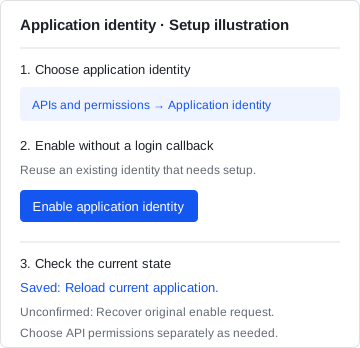
For background tasks, choose Application identity and select Enable application identity. No login callback or separate application is needed. If an existing identity needs configuration, enable it here using the saved identity. Choose API permissions separately as needed; user permissions are not copied.
If enable configuration was saved but the page has not updated, select Reload current application. This only reads the state, without creating or enabling the identity again. For an unconfirmed result, select Recover original enable request before starting another creation.
Open APIs and permissions and choose the calling identity. If user identity is not enabled, enter one exact HTTPS login callback and select Configure and enable. The logout URL and web origin are filled automatically; expand advanced settings only to customize them. The OAuth/OIDC page offers the same setup, so you do not need to enter the URLs twice. User login alone requires no business API grant.
If the page says the configuration was saved but user identity has not been read back, select Reload user identity without configuring it again. When the result is unconfirmed, recover the original request as instructed, then check the current state before continuing.
If an existing user identity needs configuration, review its saved URLs and select Configure and enable without entering the callback again. After enabling an identity or a pending API grant, select Reload current state if the saved state has not updated; this does not repeat the write.
Select an API product before choosing Request access; the dialog keeps that product selected. Search by name or scope, inspect related APIs, events and data boundaries, and select only the permissions you need. Product-specific guidance, such as Token model APIs, stays inside Token API integration (optional) until you expand it.
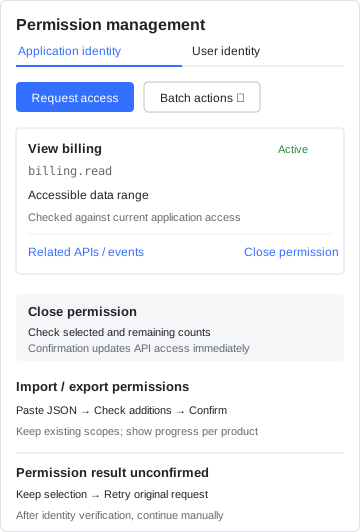
If opening or editing permissions has an unconfirmed result, your selection is preserved and locked. Choose Retry original request without selecting scopes again. When identity verification is required, complete it and retry manually; the request is never submitted automatically. If access or configuration changed, cancel the dialog to reload the current application and review it before continuing. An unverified response is not shown as a successful save.
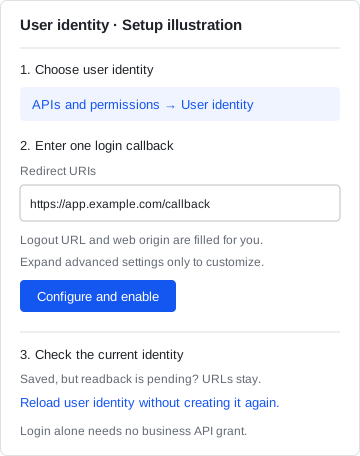
This is an illustration. Available identities, products and permissions come from the current page. The creator becomes the Application owner automatically and needs no extra platform role. Collaborators use their current Application permissions.
View and manage API permissions
The list keeps the selected identity and product categories. Search by permission name, scope or API path, then filter by status and data sensitivity.
| Location | Action and result |
|---|---|
| Permission name | Read the name, scope and purpose |
| Permission type | Distinguish application and user identities |
| Permission status | Check whether access is enabled; expand Authorization sync to check configuration consistency |
| Accessible data range | Inspect the current identity’s resource boundary; user permissions, customer grants and resource access remain separate checks |
| Related APIs / events | View API methods, paths and events in a row popover |
| Integration examples and configuration | Expand configuration and request examples when needed |
An unavailable data range does not mean unrestricted access. API scopes do not create customer resource grants. Use the Customer authorizations workspace to inspect existing grants when accessing customer resources.
Close permissions
- Click Close permission on a row. To close several scopes, choose Batch actions → Close permissions in bulk.
- For a single scope, review the current permission. For bulk closure, select the scopes to close; you can search and select visible results. Unselected scopes remain enabled.
- Check the selected and remaining counts, then click Confirm closure.
Closing updates API access immediately and may cause calls to fail. Event subscriptions are configured separately and are not automatically deleted. After closing the final scope for a product, you can enable scopes again on the same product without creating another application or identity.
After a failure or an unconfirmed result, selection is locked. Retry the original request, or cancel and reload application details to check the outcome.
Import and export permissions
Open Batch actions → Import / export permissions:
- On Export, copy the current application’s permissions JSON. It contains product codes, versions, identities and scopes, excluding credentials and customer resource grants.
- On the target application’s Import tab, paste the JSON and click Check additions.
- Review the preview and click Confirm additions. Import adds scopes and preserves existing access.
No application ID, callback URL or request reason is needed. One import can include both identities, provided each identity is enabled and the current product version allows the scopes. If any entry is unavailable, validation blocks the entire submission before any write.
Progress is shown per product. If a later request fails, completed items remain saved; retry resumes the original failed request. After closing the dialog, reload application details to check the result. Import is not a single transaction across all products.
Unified entry points
Each deployment environment provides its own entry points. Test a sandbox application in Development or test-us. Get public Origins from current environment settings and Base URL and supported paths from the enabled API product. Do not infer addresses from hostname suffixes.
Test entry points for a Sandbox Application
| Purpose | Entry point | Audience | Boundary |
|---|---|---|---|
| Developer Docs | ${GOODVISION_DEVELOPER_DOCS_ORIGIN} | All integration teams | Anonymous; no sign-in session |
| Developer Console | /console/ on the current documentation origin | Developers using their own accounts | Applications, application/user API permissions, events, and Sandbox progress |
| Identity / OIDC Issuer | ${GOODVISION_IDENTITY_ISSUER} | Users and services | OAuth 2.0 / OIDC authentication and tokens only |
| Open API | ${GOODVISION_API_BASE} | Approved Applications | Only routes listed in the issued API Product |
| Webhook origin | ${GOODVISION_WEBHOOK_ORIGIN} | Approved Applications | Use the address scope in the current Webhook configuration |
Development and test-us provide separate documentation, identity, API and Webhook addresses for isolated Sandbox resources. Use one environment’s complete set; do not combine settings from another environment.
Production environment (Production)
| Purpose | Entry point | Audience | Boundary |
|---|---|---|---|
| Developer Docs | ${GOODVISION_DEVELOPER_DOCS_ORIGIN} | All integration teams | Static documentation only; no sign-in session or API is hosted here |
| Developer Console | Enabled through the production integration contract | Production-approved external developers | This documentation does not publish a shared production entry point |
| Identity / OIDC Issuer | ${GOODVISION_IDENTITY_ISSUER} | Production-approved users and services | Validate the issuer returned by Discovery exactly |
| Open API | ${GOODVISION_API_BASE} | Production-active Applications | Only routes listed in the production API Product contract |
| Webhook origin | ${GOODVISION_WEBHOOK_ORIGIN} | Production-active Applications | Use the address scope in the Production Webhook configuration |
Documentation and Console may share a hostname, with Console at /console/. APIs, OIDC Issuer and Webhook use their own configured addresses. Do not infer them from the documentation hostname.
Before Production, create or configure separate Applications, OAuth Clients for both identities, Issuer, Audience, credentials, API access grants, user consent/delegation, data, Webhooks and quotas. Sandbox settings cannot be reused across environments.
The business Production release target is not yet determined. Follow the Production activation guidance for access.
Configuration entry points
Create applications and request API products and Webhooks in Developer Console, then use the enabled API specifications. The platform validates settings, supplies credentials and checks organization scope. Each business API also checks resource access. Third parties integrate through these public entry points.
API authorization requirements
Every request must pass four common checks: the access token is valid and comes from the correct identity, the target API and API permissions match, the API grant for the current identity is active, and the target organization and resource are allowed.
Requests pass the following checks:
- The managed identity service validates the token signature, expiry, and target API.
- The unified permission service verifies organization access, roles, entitlements, and delegation.
- The platform verifies the Application and identity's API grant, scopes, environment, and quota.
- The business API checks the Tenant, Account, and resource ACL.
A Partner-to-Customer call may select organization_id for the Customer and acting_organization_id for the Partner. These values select a context; the platform validates the approved delegation. Changing headers or URL parameters cannot add permissions.
The Developer Console labels this as “Delegated access”. organization_id is the Customer whose data is being accessed, while acting_organization_id identifies the Partner acting on its behalf. The page can only select a combination already approved by the platform; the BFF keeps both values in the server session and forwards them together, and the platform verifies them again. Switching Partners does not grant new permissions.
Each identity then has additional requirements:
| Application permissions | User permissions |
|---|---|
| The token comes from the application-identity Client | The token comes from the user-identity Client |
| Uses the application-identity API grant | Uses the user-identity API grant |
| Application identity is allowed for the target organization | The user consented to the required scopes |
| Never reads or inherits user roles | The platform delegated grant is active |
| The business API checks the application’s data scope | The permission service and business API check the current user’s access |
Token, application API access grant, user consent or delegation, organization scope and resource permissions must all be valid. Failure of any check rejects the request.
A visible menu, an "Active" label, or a JWT claim alone is not final authorization. Request fields such as organization_id, account_id, or user_id cannot expand the server-derived boundary.
Request and configuration flow
- Sign in with your own account. An account with no enterprise gets a personal space automatically. Join the enterprise and obtain Application access when collaborating on existing Applications.
- Create a Sandbox Application with a name. Its code is generated and the creator becomes its owner.
- Enable application identity, user identity, or both as needed. The platform provisions a separate OAuth Client for each enabled identity. User identity requires exact callback URLs; application Secrets stay server-side.
- Select an API Product and minimum permissions under the current identity only when business APIs are needed. Login alone requires no business API grant. One request cannot span both identities.
- The platform automatically checks identity type, allowed operations, data boundary, quota, and risk. User permissions also declare whether user consent is required.
- After validation, the platform binds the selected permissions and target API to the current identity's OAuth Client and enables this API grant.
- Check the validation result: Bound for matching configuration, Configuration drift for missing or mismatched configuration, or Temporarily unverifiable when it cannot be checked.
- Application Secrets are retrieved or rotated through the method shown in the Console. User identity clearly shows No Client Secret required.
- Follow the dynamic checklist in “Sandbox and launch” for the capabilities actually enabled, then request Production. For APIs in use, test audience, organization, least privilege, cross-identity and cross-organization denial, and revocation. For events in use, test the selected reception method and failure recovery. Unused APIs, events and service credentials are not prerequisites for login or launch.
Credential operations for the current identity use POST /api/developer/v1/applications/{applicationId}/oauth-profiles/{profileId}:reveal-credential and :rotate-credential. Only a service Profile can use these operations; a user Profile never has a Secret. Responses remain no-store, rotation requires an Idempotency-Key, and the old Secret is invalidated immediately.
Revoking one identity denies new requests through it and preserves the other identity's configuration.
Troubleshoot 401 and 403 responses
| Result | Common cause | Action |
|---|---|---|
401 | Missing, expired, or invalid token; wrong issuer or audience | Obtain a token for the current environment and compare iss and aud with Discovery and the API Product contract |
401 session_expired invalid Console sign-in | Current sign-in expired or can no longer be used | Sign in again from the original page without manually clearing cookies; the same account and valid scope can retain ordinary drafts, with no automatic business replay |
403 enterprise or Application denied | Current membership or Application access is insufficient or revoked | Contact that enterprise or Application owner; explicitly choose an authorized scope rather than switching silently or using another person's account |
403 identity_mismatch | The token came from the other identity's Client, or the request used the other identity's API grant | Confirm whether the request should use application or user permissions, then obtain the matching token |
403 scope_denied | The current identity's API grant is pending/revoked, or its scopes exclude the operation | Check the Application, identity, API Product, environment, and permission state in the Developer Console |
403 organization_denied | The token or Application does not match the requested Organization or ProductTenant | Use an approved organization context; a request header cannot override the server context |
403 resource_denied | Resource ACL, state or approval denies the operation | Save the request ID and ask API product support to check resource scope and state |
503 | Access or resource checks are temporarily unavailable | Save the request ID and retry with backoff; keep access restricted until verified |
If Workspace unavailable appears after sign-in, choose Reload workspace without signing in again or requesting permissions. The Console rechecks your sign-in and current organization. If the session has expired or organization access has been revoked, follow the corresponding message.
For diagnostics, provide only the Application ID, environment, API Product, request ID, error code, and time. Never provide a token, client secret, cookie, or webhook secret.
Integration boundary
- Request integration resources only through the Developer Console and call business APIs only through issued API Products.
- Do not call platform administration interfaces directly.
- Do not run a third-party system with an internal account, someone else's session, or a shared administrator token.
- Do not infer supported APIs from source code, sample paths, DNS, or internal service addresses.
- Use one logical Application per product and purpose. Keep foreground user calls and background jobs in separate identities and credentials within that Application. Sandbox and Production still use separate Applications and remain fully isolated.
Next: Complete a Sandbox integration · Authentication and authorization · API Products
See User authorization for the complete grant parameters and recovery rules.
Customer space after login
For login, the platform prepares the personal space through Users and customer spaces. Your developer business manages Applications and is not every customer’s request scope. Endpoint availability and business API grants remain separate.